
Workspace administration
Invite and manage people
Workspace administrators and owners use Workspace Admin → People. Administrators can invite and manage ordinary employees. Only the owner can create or manage another administrator; the owner account cannot be deactivated until ownership is transferred.
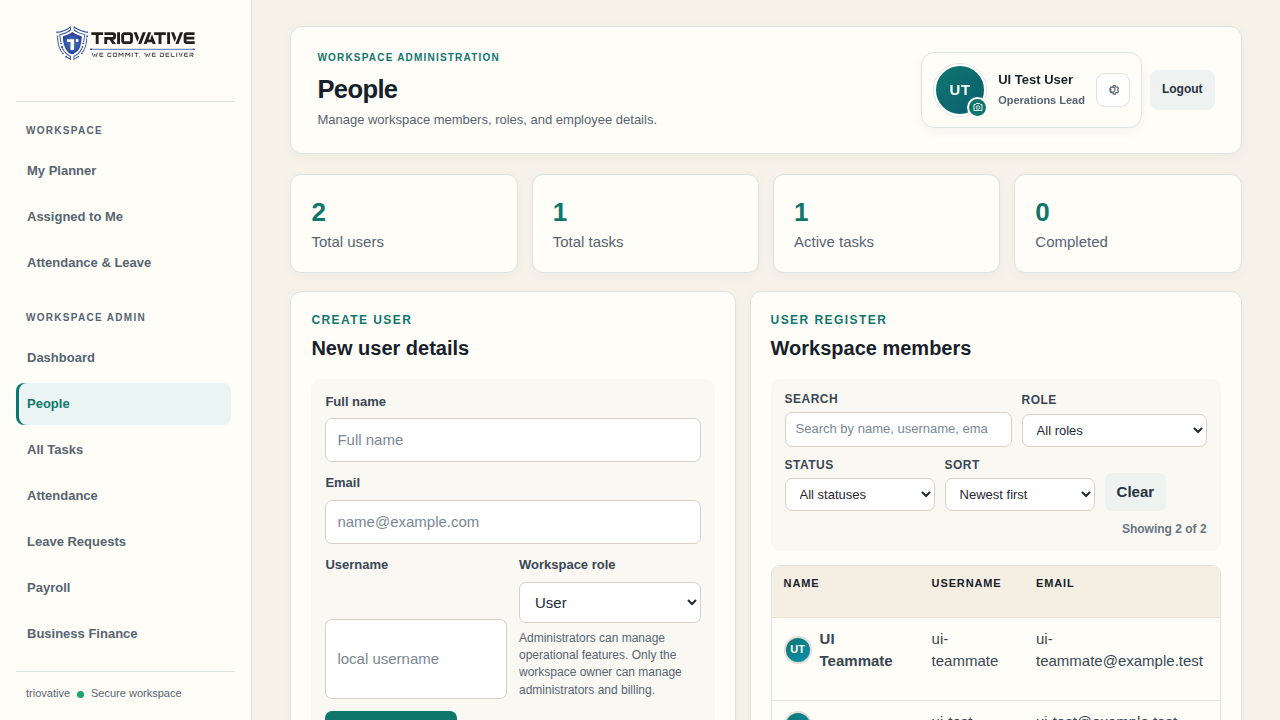
Example screen using sample accounts.
Add and maintain a member
- Select Send invitation and enter a unique username, name, and email. The member chooses their own password from a single-use setup link.
- Check invitation delivery status. If email delivery failed, verify Email Settings, resend, or use the controlled copy-link fallback with the intended recipient.
- For a leaver, select Deactivate, enter the required reason, and confirm. This revokes access but preserves tasks, notes, attendance, leave, payroll inputs, and audit history.
- Use Reactivate when access should return. Seat capacity is checked again. A cancelled invitation to a never-active account returns to invitation state with a new link only if capacity is available.
Use the member detail controls for email, employee ID, salary, profile photo, and secure administrator-initiated password reset as applicable. A resend invalidates previous unused invitation links. Permanent employee deletion is not a supported lifecycle action.
Active users and pending, unexpired invitations count when the workspace checks capacity for a new or restored invitation. Acceptance checks the active-user limit again. If a member cannot accept an invitation, confirm the workspace code, the newest link, its 72-hour validity, and the effective limit shown in People or Billing. An expired negotiated seat agreement can lower that limit while existing accounts and data remain available.